Creating a WordPress website is not limited to people who have advanced computer skills or run large organizations. Even if you are a freelancer, a blogger, a small business owner, or an artist creating something special, you can use a WordPress website as your digital identity. You will not need to have any programming experience in order to create a complete working WordPress website from scratch.
As part of this guide on how to create a WordPress website from scratch, I will explain each step of the process using simple language and easy to understand methods. By the time you finish reading this guide, you will own a website that looks professional and is ready to launch.

What is WordPress?
WordPress is a CMS that allows you to create and manage a website without needing technical skills.
There are two main forms of WordPress:
- WordPress.com is a hosted version with limited features.
- WordPress.org is self-hosted giving you complete control over your website and allowing you to customize it to the fullest extent possible. We will be using WordPress.org for the purpose of this course.
Why Choose WordPress? / Reasons to Use WordPress!
Below are 7 key reasons why millions of people trust WordPress.
- Simple to use for beginners
- Available for free (open-source)
- 1000s of themes and plugins available
- Customizable in every way
- Built-in SEO capabilities
- Mobile responsive across all devices
- Large user community providing support
So no matter what type of site you want to create (blog, portfolio, e-commerce site, business) this platform will work for you!

Pick Hosting Provider and Choose a Domain Name
You will need two things prior to designing a web site:
Your web site’s address (domain): e.g.. example.com or example.net Your web site files are stored on a server which provides ample resources for performance and reliability (hosting) (e.g. example.com).
Choose Domain Name
- Keep it concise – it should be simple to type, easy to remember.
- Do not include numbers (alternatives to letters) and hyphens when creating domain names.
- If your domain name is available, consider using the most common, world-wide domain name extension (.com).
- Try to include keywords within your domain name if applicable – sample: bestseoservice.com.
Best Web Hosting Providers
- Bluehost (great choice for novices)
- SiteGround (very fast and secure)
- Hostinger (inexpensive solution)
- WP Engine (high-end, state-of-the-art solution)
All web hosting companies provide easy, one-click setting up of websites using WordPress; however, not every website that offers hosting support has the same level of quality hosting service.
Install WordPress on Your Hosting
To create your new WordPress site, follow these steps to install WordPress on the hosting you have already registered:
- Log into your hosting account’s dashboard.
- Locate the option to install WordPress (it will be either under a website management tool such as “Website” or “Softaculous Apps Installer.”)
- Click on “Install Now.”
- Fill out the information requested (site name, administrator username, and password).
- Click on “Install.”
Congratulations! Your blank WordPress site is now ready for you to start creating.
Get Acquainted with the WordPress Dashboard
Go to: your-website.com/wp-admin
Use the username/password you created to log in.
You will now be at the WordPress Dashboard – the central hub for controlling everything related to your site.
The Dashboard contains four major sections:
- Posts – the section for blog posts.
- Pages – where you will see your static pages for things like Home, About & Contact, etc.
- Appearance – the place to manage your theme, widgets, menus and customize your site.
- Plugins – where you will install and manage the functionality of your site.
- Settings – this is where you will set up your general site settings.
Take a few minutes to wander around and explore your new WordPress dashboard!
Select a Theme That Suits Your Needs
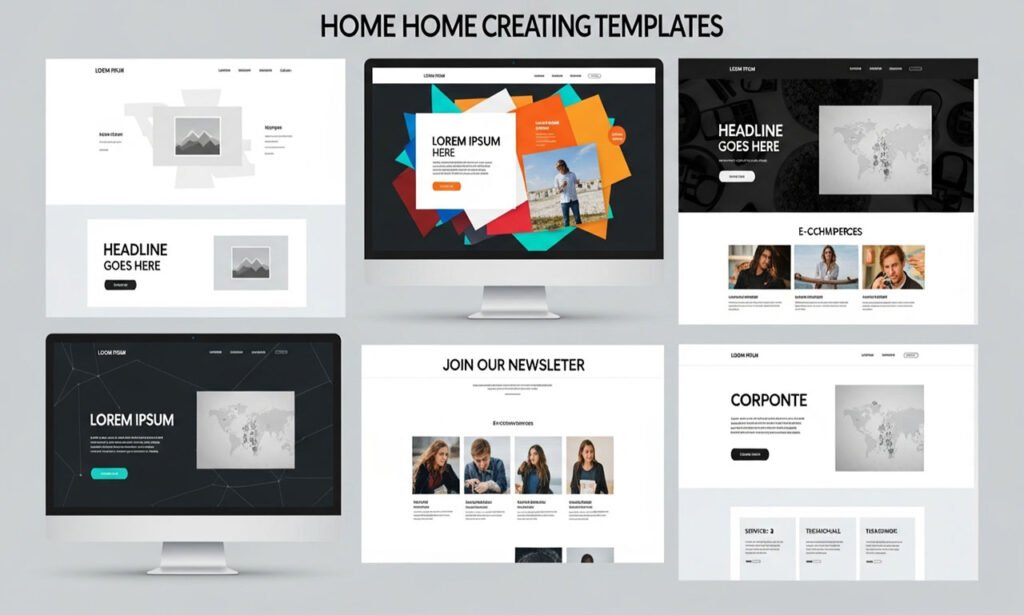
Themes are what determine much of the look of your website (design, layout, fonts, colors).
Choosing a good theme is based on several factors:
- Make sure that your theme is Responsive
- Make sure that it is Lightweight / fast
- Check compatibility with page builders such as Elementor
- Ensure that the theme has Regular Updates
- Ensure that there are good Reviews and Support for the theme
3 Examples of Great Free Themes:
- Astra
- OceanWP
- Neve
- Kadence
To Install Your Theme:
- Go to Appearance > Themes > Add New
- Search for your Theme
- Click Install then Activate
Essential Plugin Installation Instructions:
Essential plugins provide “App like” functionality to your WP site by adding additional features.
The following are my recommended essential plugins:
- Elementor-Drag and Drop Page Builder
- Rank Math or Yoast SEO-Search Engine Optimization (SEO)
- WPForms-Contact Forms
- UpdraftPlus-Backup Solution
- Smush-Image Optimization
- Wordfence-Security
To Install these plugins you need to go to the following location in your WP Admin panel (plugins > add new) search for the essential plugin, then click install and activate.
Personalize Your Website or Customize Your Website Design
The next step is to create your site the way you want it to look.
WordPress Customizer
To access the WordPress customiser, navigate through Appearance > Customise
Here You Can:
- Upload a logo
- Change your font colour and type
- Edit the header or footer of your site
- Change the layout of your site
Elementor/Gutenberg
Using both Elementor and Gutenberg are ways you can create beautiful pages using either drag-and-drop or completely pre-built pages / blocks.
You can customize all of the sections (images, text, and buttons) on the page visually.
Tip – Keep your design simple, easy to find, and consistent with your brand.
Core Pages Creation
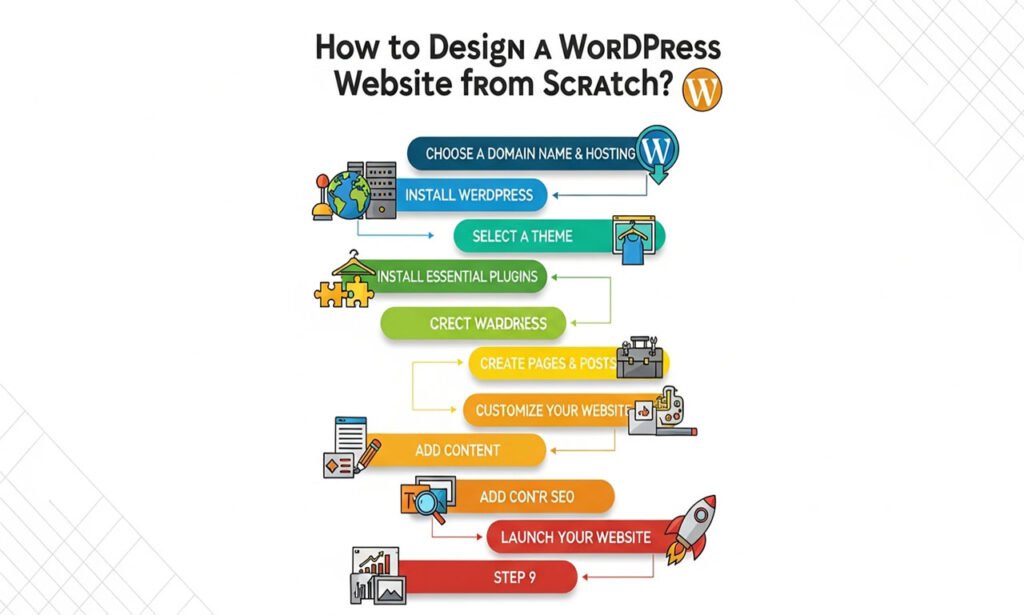
At the very least, your website needs these defining pages to be complete:
🏠 Home Page:
Welcome Message
Short Description of Services
CALL TO ACTION (CTA)
🙋♂️ About Page:
Your story
Your goal(s)
About your team members (optional)
📞 Contact Page:
Contact form or phone number, fax or address
Where to find you on a Map (or an Image of your office/facility) (if applicable)
📝 Blog Page:
Automatically show all your most recent blog posts (if creating a blog)
To create pages on a new website:
Go to the Menu tab and select Add New Page, enter a title and the text for that page, and then select Publish.
Speed and Mobile Optimization
Over 60% of internet traffic comes from mobile devices, making speed an essential element of both the overall user experience and search engine optimization (SEO).
To Optimize Your Site for Mobile:
- Select a responsive design theme
- Perform mobile tests of your website in your selected devices
- Avoid overlapping text and use sufficient font sizes
To Speed Up Your Site:
- Optimize Images with Smush or TinyPNG
- Use a Cache Plugin like WP Super Cache or LiteSpeed Cache
- Choose a Lightweight (mobile-friendly) Theme
- Use A Content Delivery Network (CDN)
To Test Your Page Speed: Use Google’s PageSpeed Insights.
SEO Fundamentals
The purpose of SEO (Search Engine Optimization) is to drive traffic from search engines such as Google to your website.
Basic SEO Installation Steps
- Install either Rank Math or Yoast SEO on your WordPress website.
- Make sure you have SEO titles and meta descriptions set for each of your pages.
- Include keywords naturally throughout your website content.
- Submit your site to Google Search Console. (You can also do this through an XML Sitemap if you use a plugin like Rank Math or Yoast.)
- Create an XML Sitemap for your site using one of the plugins above.
SEO is a long-term strategy. Continue to create valuable content that helps people and build backlinks for your business.

Launch and Promote Your Site
Before launching your website, check off the following items from our Final Checklist:
✓ Is the site mobile-friendly?
✓ Is the site speed optimized?
✓ Has the site been set up for SEO?
✓ Is the Contact Form working?
✓ Is each of the pages designed?
If you have answered YES to all five questions, you are ready to launch your site!
Now that you have launched your site, you need to begin promoting it.
Some ideas for promoting your website include:
- Share your new site on social media
- Add your new website link to your email signature
- Join online communities that relate to your new website
- Start blogging to gain traffic & get your site out there
- Offer your target
Additional Tips for Exceeding Your Website's Goals
🔹 Keep WordPress, themes & plugins current – It’s important to keep your software updated as new features can improve your site. Many WordPress themes and plugins allow you to set up automatic update notifications.
🔹 Backup Your Site – Use UpdraftPlus to automatically schedule backups.
🔹 Keep learning – Follow WordPress blogs or YouTube channels that provide information about best practices & new features!
🔹 Prioritize User Experience – Make sure your website is easy to navigate, loads quickly & is usable on mobile devices!
🔹 Monitor Your Website’s performance – Use Google Analytics & Search Console to track your website’s performance.
Conclusion / Final Thoughts
Building a WordPress site from nothing can be daunting at first; however, once you divide things into manageable pieces, the process becomes fairly simple! The cool thing is that you’re in complete control over what happens. You will be the only one who has to pay for the creation of your website, and you won’t have to deal with any difficult coding issues.
You will also be the only person who has the vision of how to create your own website; it will just be you and the right tools!
No matter if you are beginning a blog, creating a professional website, or developing an ePortfolio, using WordPress allows you to create an online presence for yourself.
Why not start working on your website today? Your new website is just minutes away from being completed and ready for launch!
Thanks for reading our article.
Developer at WordPressCarePoint
Booking for 30 minute Free Consultation on Google Meet: Click here for an appointment today.
contact@WordPresscarepoint.co.uk
www.wpcarepoint.com
